Appearance
Editorial hero
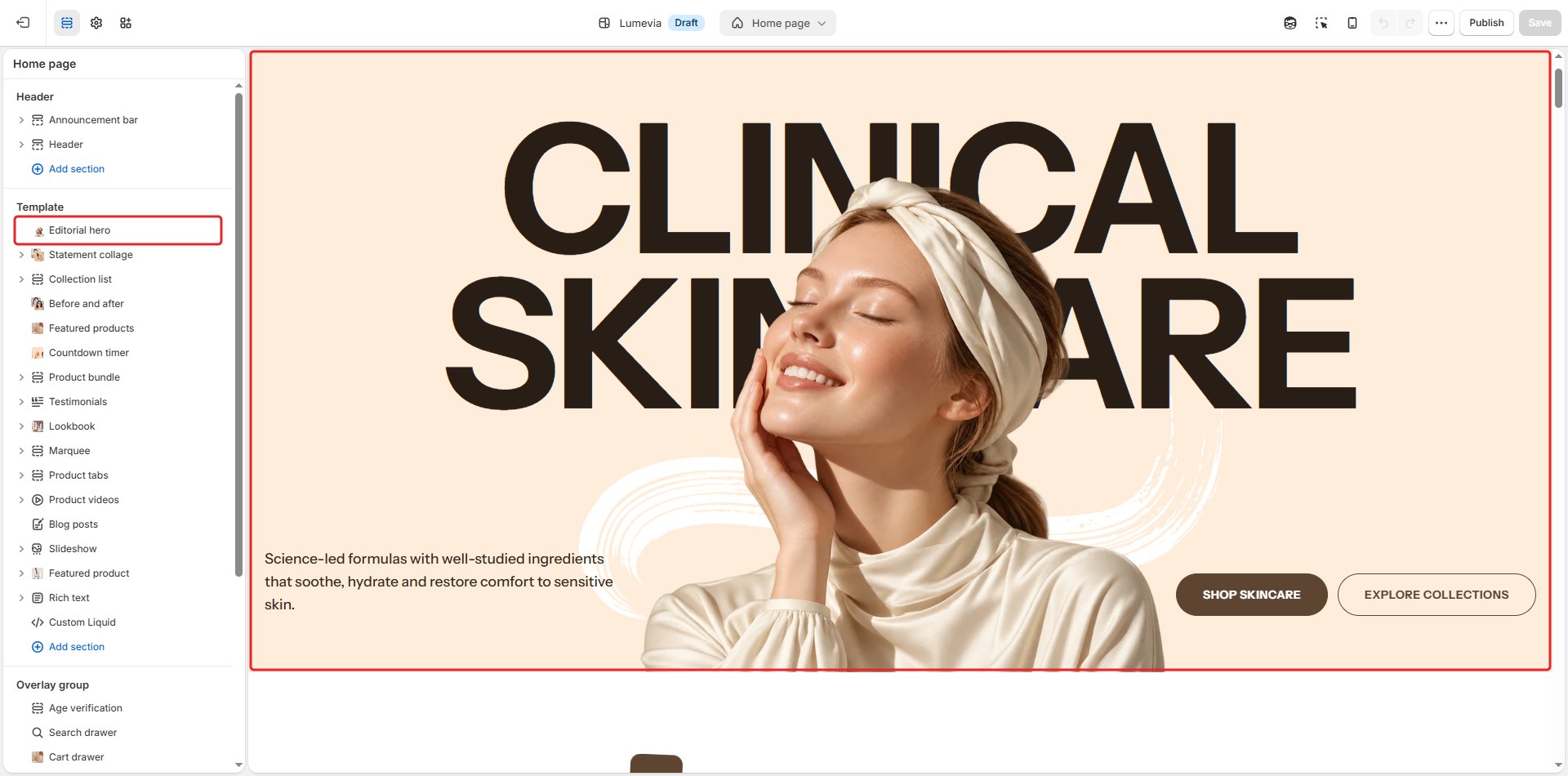
The Editorial hero is a magazine-cover opening for your home page. An oversized heading runs across the screen, and a cut-out photo of a person or a product stands in front of it, so the subject seems to step out of the type. A short text and up to two buttons sit at the bottom.

It is designed as the first section of a page: it can stay in place while the next section scrolls over it, and it can lay the header over itself.
Find it in the editor
On the home page, it is the first section in the Template list. To add it to another page, click Add section and choose Editorial hero.
Section settings
General
| Setting | Description |
|---|---|
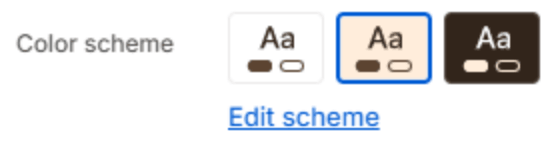
| Color scheme | The colors of this section. Schemes are edited in Theme settings → Colors. |
Layout
| Setting | Description |
|---|---|
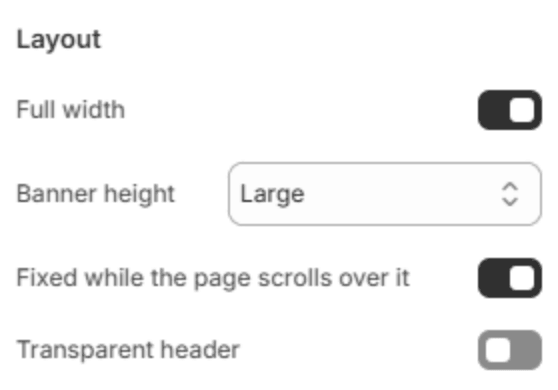
| Full width | Runs the section from edge to edge instead of within the page width. |
| Banner height | How tall the section is: Small, Medium or Large. |
| Fixed while the page scrolls over it | Holds the section in place while the next section scrolls up over it. Works only when it is the first section on the page. |
| Transparent header | Lays the header over the section, transparent, until the page scrolls. Works only when it is the first section on the page. A light logo for this can be set in the Header's Logo over a banner. |
Background
| Setting | Description |
|---|---|
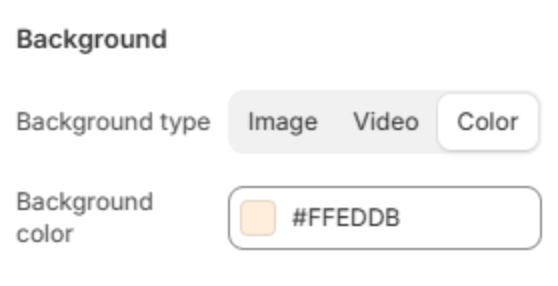
| Background type | What fills the background: an Image, a Video, or a plain Color. Until you choose an image or video, a faint placeholder fills the background. |
| Image | The background picture. Shown when Background type is Image. |
| Mobile image | A separate picture for phones. Leave it blank to crop the desktop image. Shown when Background type is Image. |
| Video | A video uploaded to Shopify. It plays muted and on a loop. Shown when Background type is Video. |
| Background color | The color. Shown when Background type is Color. |
| Overlay opacity | Darkens the image or video so the text stays readable (0–90%). |
| Overlay color | The overlay's color. Shown when the overlay is above 0%. |
Heading
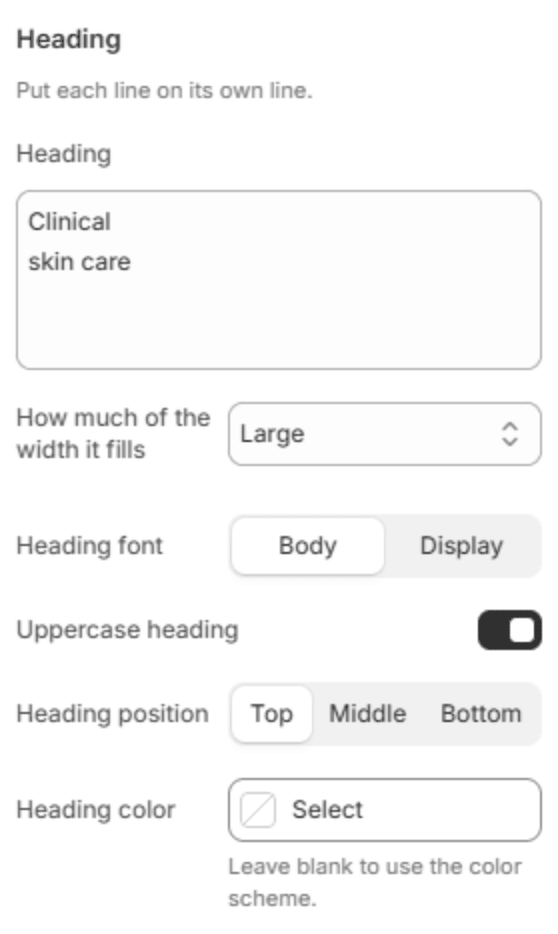
| Setting | Description |
|---|---|
| Heading | The oversized heading. Each line you type becomes one line of the heading, so two short lines, such as Clinical and Skin care, give the strongest effect. |
| How much of the width it fills | How large the heading is: Small, Medium or Large. The heading sizes itself to the width of the screen, so it always fits. |
| Heading font | Display uses the heading font and Body the body font, both from Theme settings → Typography. |
| Uppercase heading | Writes the heading in capital letters. |
| Heading position | Where the heading sits: Top, Middle or Bottom. |
| Heading color | Overrides the scheme's heading color. Leave it blank to use the color scheme. |
Cut-out subject
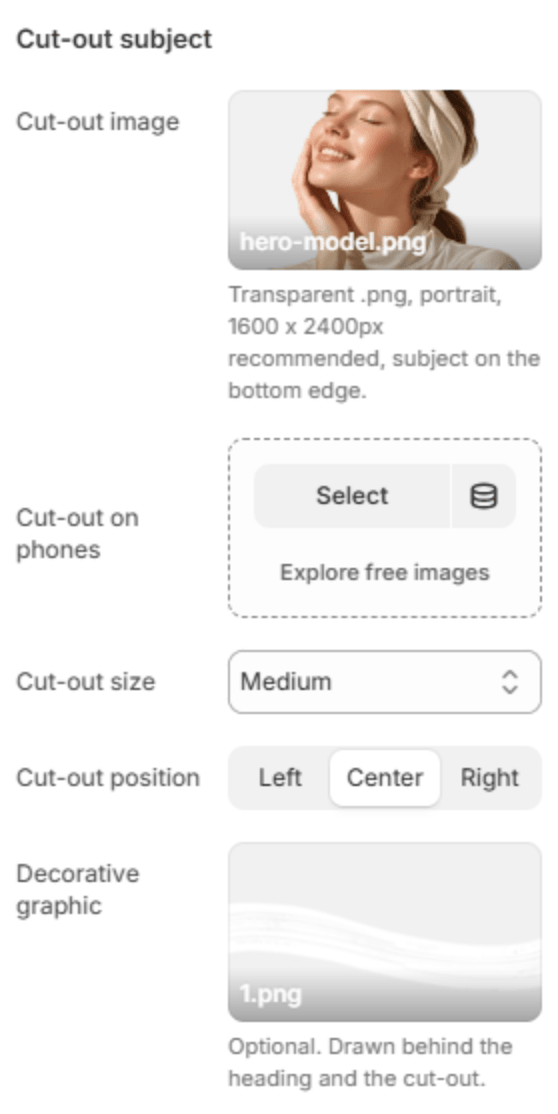
| Setting | Description |
|---|---|
| Cut-out image | The photo that stands in front of the heading. Use a PNG with a transparent background, in portrait (1600 x 2400px), with the subject touching the bottom edge. |
| Cut-out on phones | A separate cut-out for phones. Leave it blank to use the one above. |
| Cut-out size | Small, Medium or Large. |
| Cut-out position | Left, Center or Right. |
| Decorative graphic | An optional graphic, such as a brush stroke, drawn behind the heading and the cut-out. |
Copy
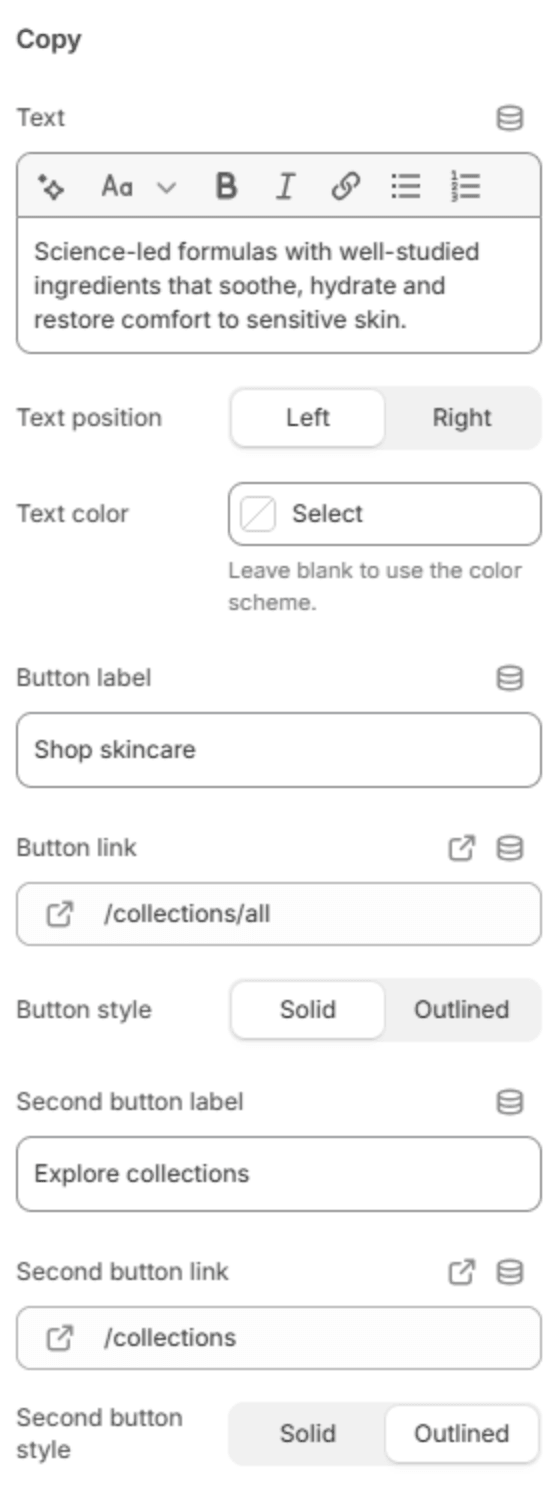
| Setting | Description |
|---|---|
| Text | A short text at the bottom of the section. |
| Text position | Puts the text on the Left or Right; the buttons take the other side. |
| Text color | Overrides the scheme's text color. Leave it blank to use the color scheme. |
| Button label | The first button's text. Leave it empty to hide the button. |
| Button link | The page the first button opens. Shown when it has a label. |
| Button style | Solid or Outlined. Shown when it has a label. |
| Second button label | The second button's text. Leave it empty to hide it. |
| Second button link | The page the second button opens. Shown when it has a label. |
| Second button style | Solid or Outlined. Shown when it has a label. |
Note
Preparing the cut-out: remove the background from a photo with any background-removal tool, export it as a PNG, and crop it so the person or product touches the bottom edge. Without a cut-out, the section shows the heading over its background; with Background type set to Color, a placeholder marks where the cut-out goes until you add one.