Appearance
Contact form
The contact form lets customers write to you from your store. You choose its fields: name, email, phone, a message, a dropdown of topics or a checkbox. Beside the form, a panel over a picture can show your phone number, email, address, opening hours and social media links.
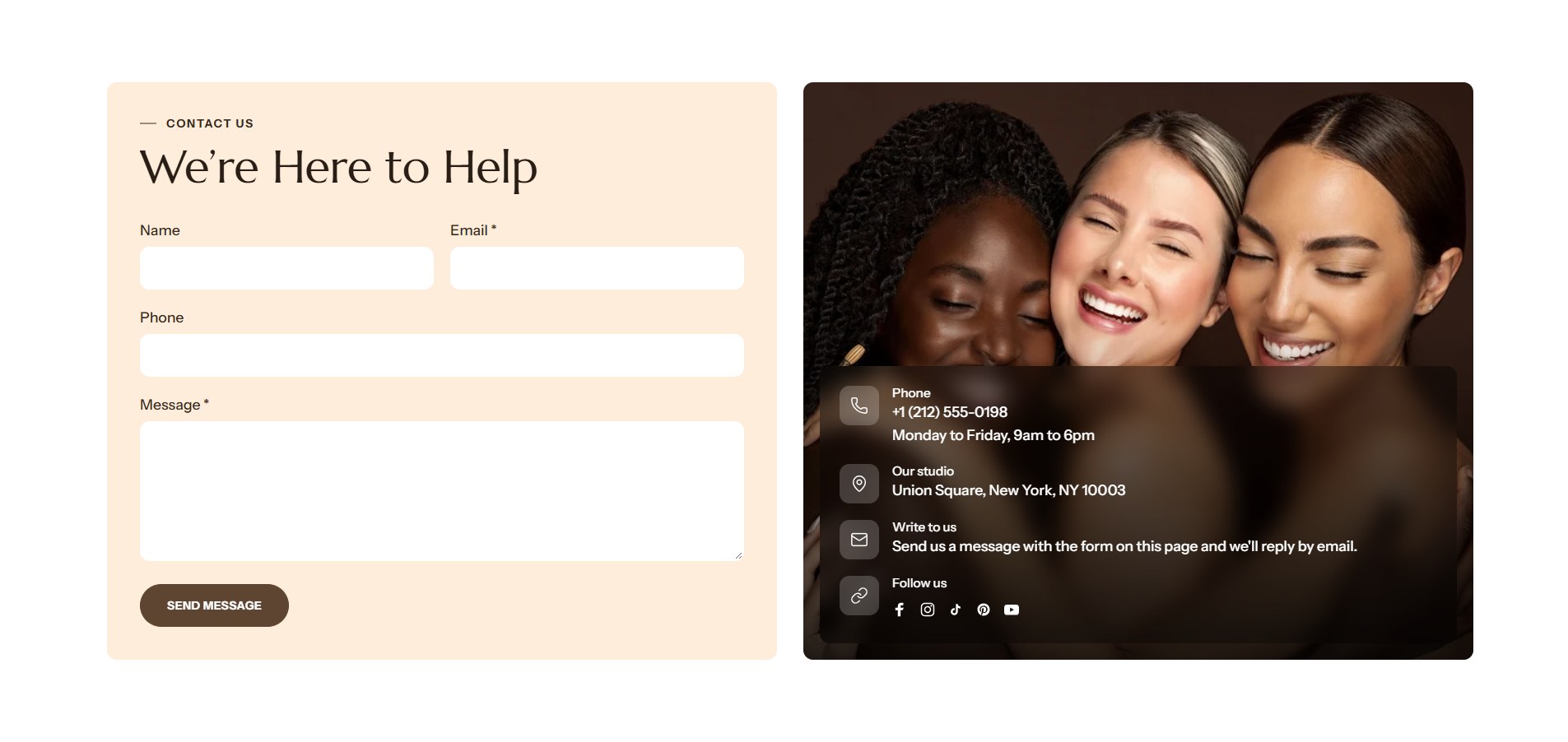
Messages are emailed to your store's sender email, set in the Shopify admin under Settings → Notifications. The email is your only copy: the admin keeps no list of them, and the sender is not added to your customers. Shopify checks every message for spam, and one it flags arrives with [SPAM] at the start of its subject.
Find it in the editor
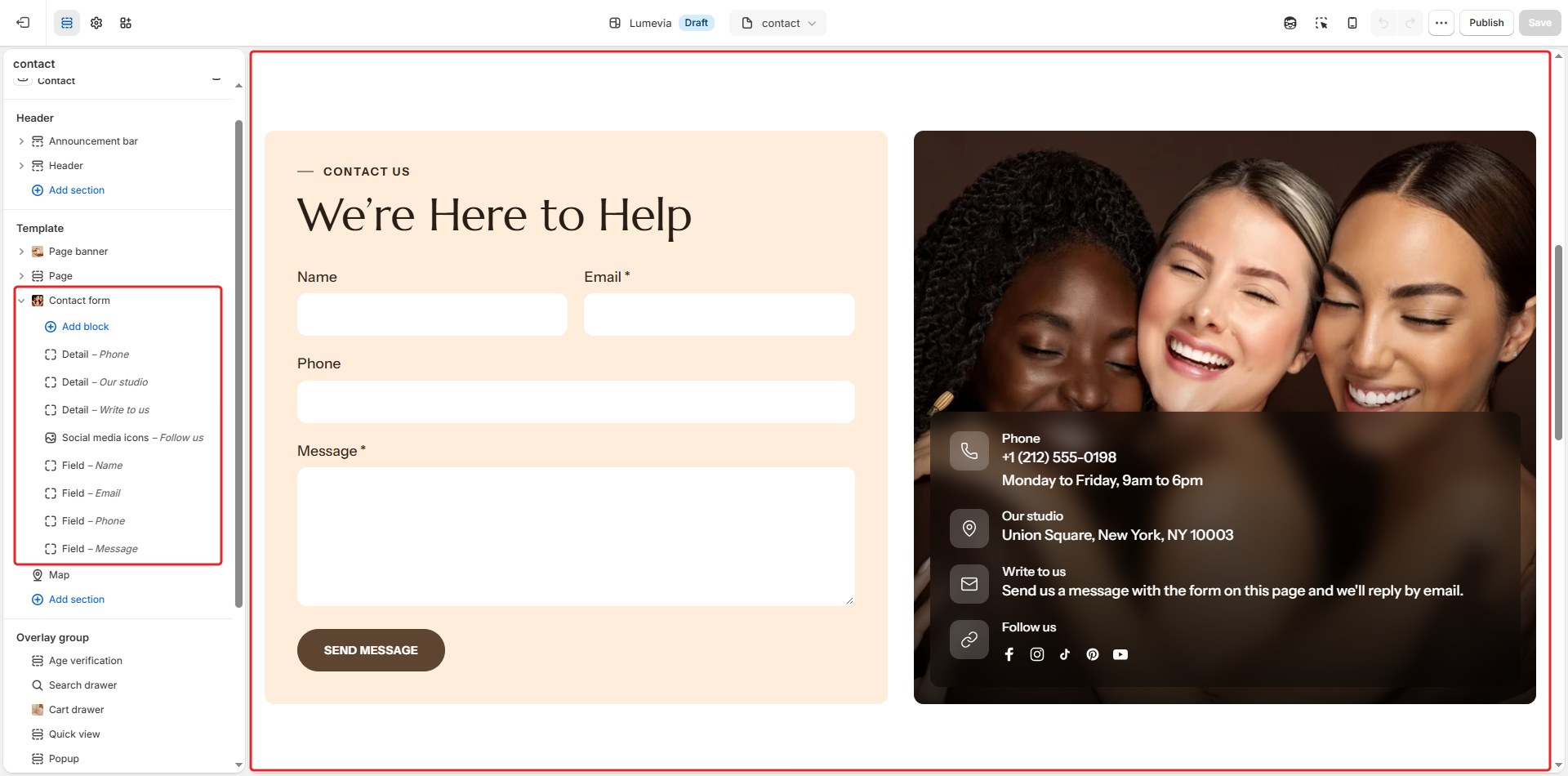
In the demo it is on the Contact page. To add it to any page, click Add section and choose Contact form. Each form field is a Field block, and each contact detail a Detail block.
Section settings
General

| Setting | Description |
|---|---|
| Color scheme | The colors of this section. Schemes are edited in Theme settings → Colors. |
| Animate on scroll | The form and the panel rise into place as the section scrolls into view. |
Section header

| Setting | Description |
|---|---|
| Subheading | A short line above the heading, with a small dash beside it. |
| Heading | The heading. Leave it empty to hide it. |
| Heading size | Medium or Large. Shown when the heading has text. |
| Backdrop word | A large outlined word behind the heading. One short word works best; it sizes itself to fit. |
| Description | A short text under the heading, for example when you usually reply. |
| Alignment | Aligns the header to the left, center or right. |
| Alignment on mobile | The alignment below 768px. Same as desktop keeps the alignment above. |
| Header width | How wide the heading and description may run: Narrow, Medium, Wide or Full width. |
Details panel
| Setting | Description |
|---|---|
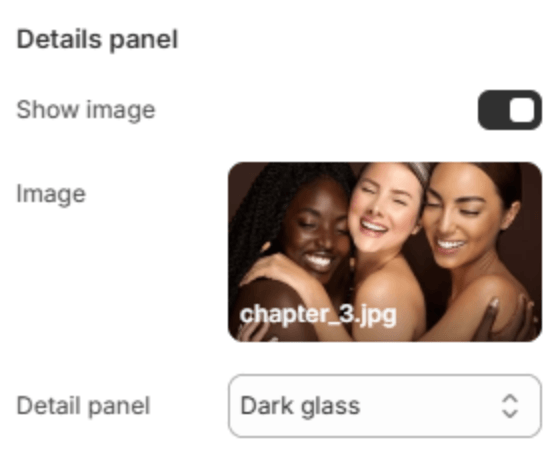
| Show image | Shows a picture beside the form, with your contact details over it. Off, the details sit beside the form on their own. |
| Image | The picture. Shown when Show image is on. |
| Detail panel | The panel holding the details over the picture: Dark glass or Light glass, frosted over the picture, or Solid. Shown when Show image is on. |
Form
| Setting | Description |
|---|---|
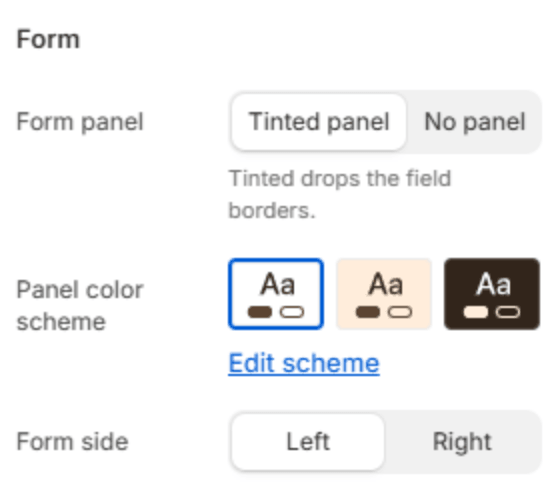
| Form panel | Tinted panel sets the form on a colored panel, with borderless fields; No panel sets it straight on the section with outlined fields. |
| Panel color scheme | The panel's colors. Shown when Form panel is Tinted panel. |
| Form side | Puts the form on the Left or Right of the details. |
Button
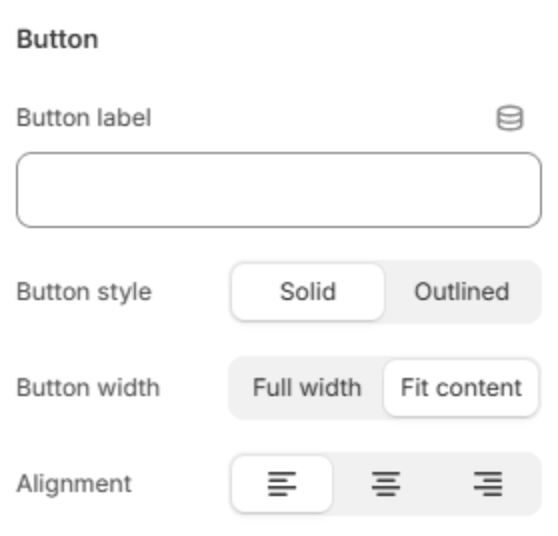
| Setting | Description |
|---|---|
| Button label | The text of the send button. Leave it empty for the default, which follows your store's language. |
| Button style | Solid or Outlined. |
| Button width | Full width across the form, or Fit content. |
| Alignment | Aligns the button to the left, center or right. Shown when Button width is Fit content. |
Section spacing

| Setting | Description |
|---|---|
| Use custom spacing | Gives this section its own top and bottom spacing. Off, it uses Section spacing from Theme settings → Layout. |
| Top spacing | Space above the section (0–200px). Phones get 60% of it and tablets 80%. Shown when Use custom spacing is on. |
| Bottom spacing | Space below the section (0–200px). Phones get 60% of it and tablets 80%. Shown when Use custom spacing is on. |
Blocks
Add fields and details with Add block under the section in the sidebar, and drag them into order.
Field
One field of the form.
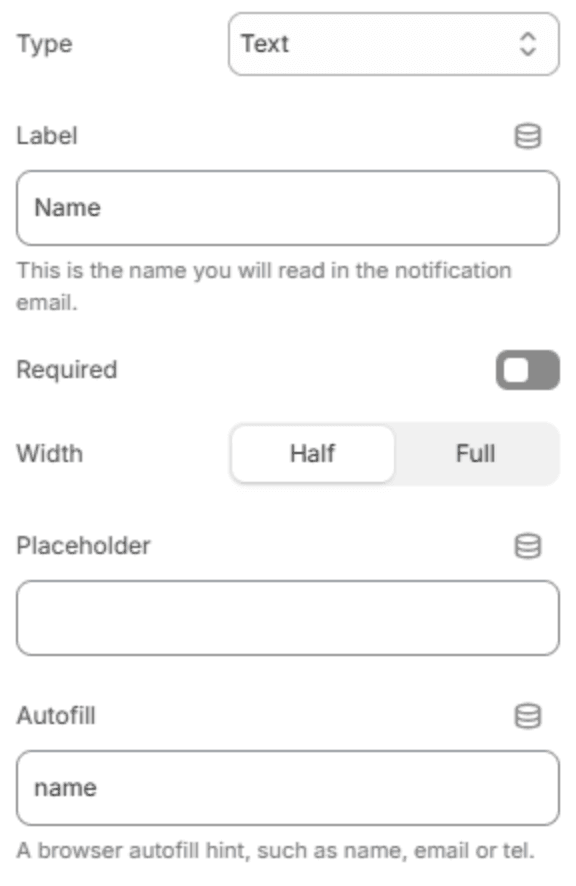
| Setting | Description |
|---|---|
| Type | Text, Email, Phone, Long text for a message, Dropdown or Checkbox. |
| Label | The field's name, shown above it. It is also the name you read in the email you receive. |
| Required | The form can't be sent until this field is filled in. |
| Width | Half puts two fields side by side; Full gives the field the whole row. Shown for every type but Long text. |
| Placeholder | A hint inside the empty field. Shown for every type but Checkbox. |
| Options | The dropdown's choices, one per line. Shown when Type is Dropdown. |
| Height in rows | How tall the message box is (3–12 rows). Shown when Type is Long text. |
| Autofill | A hint that lets the browser fill the field in for the customer, such as name, email or tel. Shown for text, email, phone and long text fields. |
Note
Keep at least an Email field, so you can reply.
Detail
A line of contact information in the details panel, such as your phone number, email, address or opening hours.
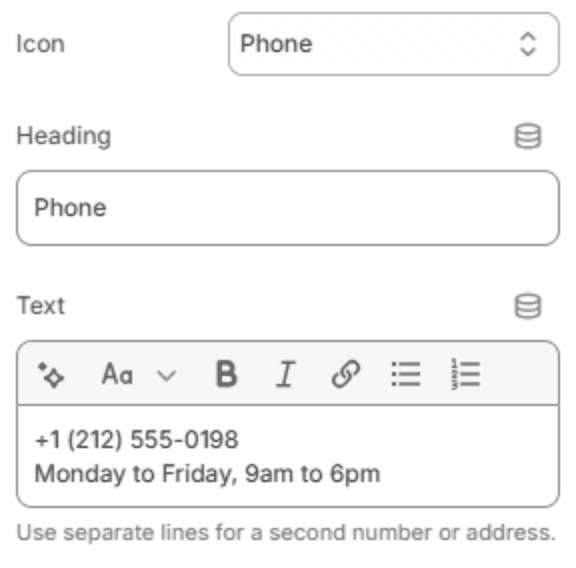
| Setting | Description |
|---|---|
| Icon | An icon beside the detail, or None. |
| Heading | A short heading, for example Phone. |
| Text | The detail itself. Put a second number or an address on its own line. |
Social media icons
Your social media icons in the details panel. The links come from Theme settings → Social media. You can add one.

| Setting | Description |
|---|---|
| Icon | An icon beside the heading, or None. |
| Heading | A short heading, for example Follow us. |