Appearance
Collection page
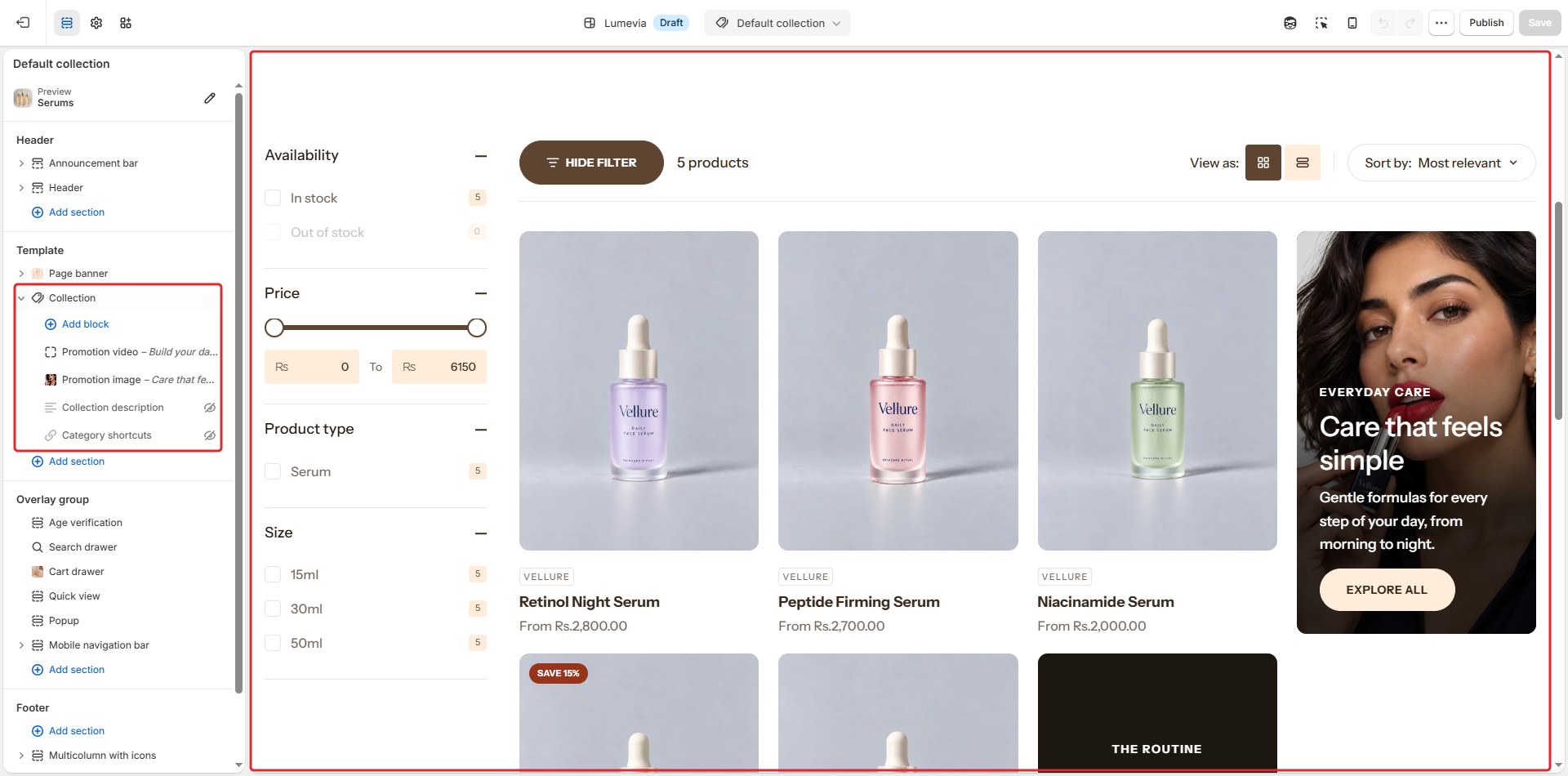
The collection page lists a collection's products, with filters, sorting, and a switch between a grid and a list. A Page banner above it shows the collection's title, description and image. You can add category shortcuts above the products, the description below the banner, and promotion tiles inside the grid.

Every collection uses the Default collection template unless you assign it another. To open it in the editor, choose Collections → Default collection from the page menu at the top of the editor.
The sections on the collection page
| Section | What it does |
|---|---|
| Page banner | The collection's title, description and image |
| Collection | The products, filters and sorting, described below |
Collection
Find it in the editor
Collection is in the template's Template list, under the page banner. Its blocks add the shortcuts, the description and the promotion tiles.
General

| Setting | Description |
|---|---|
| Color scheme | The colors of this section. Schemes are edited in Theme settings → Colors. |
Layout
| Setting | Description |
|---|---|
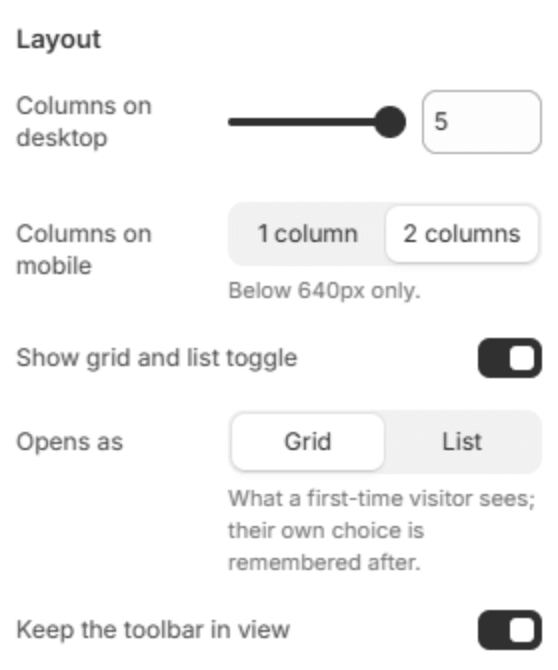
| Columns on desktop | How many products fit in a row on a large screen (2–5). With the filters in a column beside the grid, the largest screens show this many and smaller ones one fewer. |
| Columns on mobile | 1 column or 2 columns, below 640px. |
| Show grid and list toggle | Lets customers switch between the grid and a list, which shows each product in a wide row with more of its details. |
| Opens as | How the page looks to a first-time visitor: Grid or List. After that, each visitor's own choice is remembered. Shown when the toggle is on. |
| Keep the toolbar in view | The bar with the filters, sorting and toggle stays at the top while the customer scrolls the products. |
Filtering and sorting
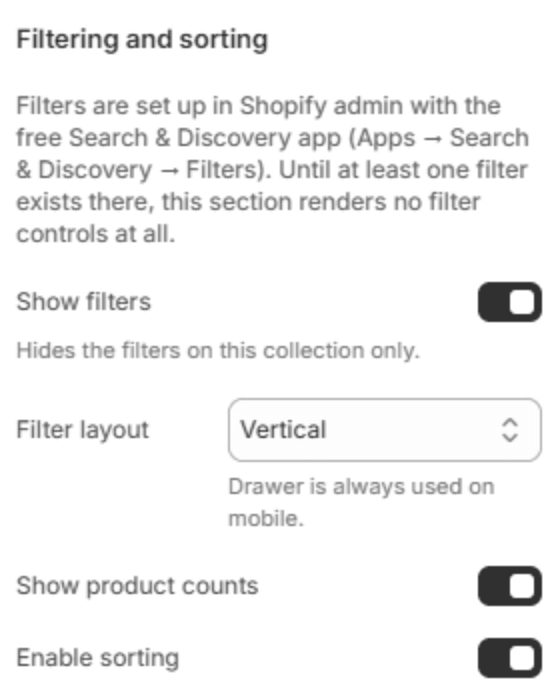
Filters are set up in the free Search & Discovery app; see Filters. Until at least one filter exists there, the page shows no filters.
| Setting | Description |
|---|---|
| Show filters | Shows the filters on collections that use this template. |
| Filter layout | Drawer opens the filters in a panel from the side; Vertical shows them in a column beside the products; Horizontal shows them in a row above. Phones always use the drawer. Shown when filters are on. |
| Show product counts | Shows how many products each filter value has, for example Serums (5). Shown when filters are on. |
| Enable sorting | Lets customers sort the products, for example by price or by best selling. |
Product cards

Each of these follows Theme settings → Product cards unless you change it here, so the collection page can differ without changing the rest of the store.
| Setting | Description |
|---|---|
| Image ratio | The shape of the product pictures: Square (1:1), Portrait (3:4) or Adapt to image. |
| Text alignment | Lines the card's text up on the Left, Center or Right. |
| Vendor | Show or Hide the vendor. |
| Product rating | Show or Hide the star rating. |
| Quick view | Show or Hide the quick view button. |
| Second image on hover | Show or Hide the second picture when the pointer is on a card. |
Empty collection
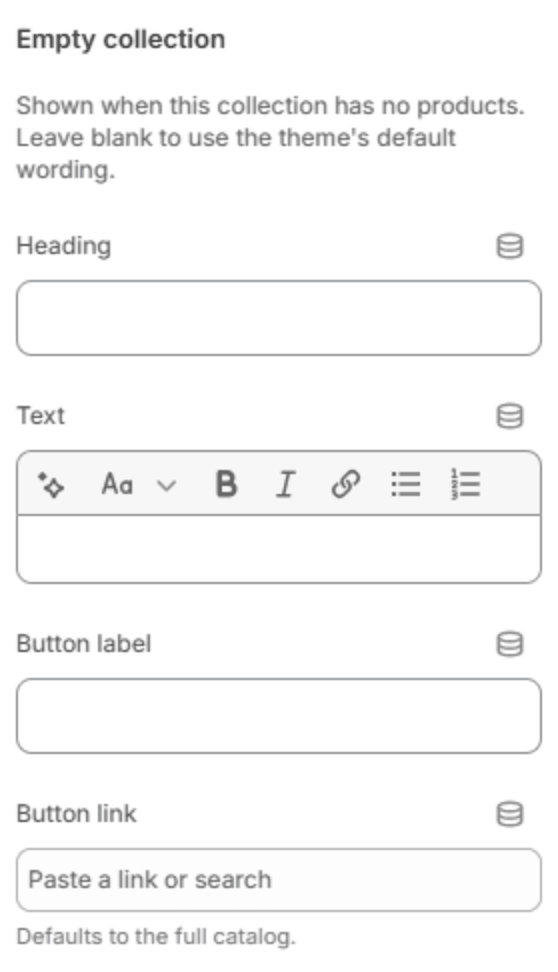
What a collection with no products shows. Leave these blank to use the theme's own wording.
| Setting | Description |
|---|---|
| Heading | The message's heading. |
| Text | A line under it. |
| Button label | A button that leads somewhere useful. |
| Button link | Where the button goes. Blank opens your full catalog. |
Pagination

| Setting | Description |
|---|---|
| Products per page | How many products load at a time (4–48). |
| Pagination style | Numbered pages, a Load more button, or Infinite scroll, which loads the next page as the customer reaches the end. |
Section spacing

| Setting | Description |
|---|---|
| Use custom spacing | Gives this section its own top and bottom spacing. Off, it uses Section spacing from Theme settings → Layout. |
| Top spacing | Space above the section (0–200px). Phones get 60% of it and tablets 80%. Shown when Use custom spacing is on. |
| Bottom spacing | Space below the section (0–200px). Phones get 60% of it and tablets 80%. Shown when Use custom spacing is on. |
Blocks
Add blocks with Add block under Collection in the sidebar. Apps can add their own blocks here too.
Collection description
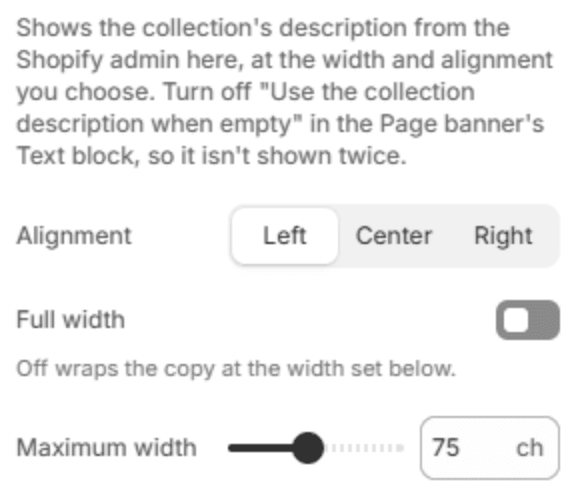
The collection's description, from the Shopify admin, printed above the products where you can set its width and alignment. If you use it, turn off Use the collection description when empty in the page banner's Text block, so the description doesn't appear twice. You can add one.
| Setting | Description |
|---|---|
| Alignment | Left, Center or Right. |
| Full width | Lets the text run the full width of the page. Off, it wraps at the width below. |
| Maximum width | How wide the text may run, in characters per line (40–120). |
Category shortcuts
A row of tiles linking to related collections, above the products. The links come from a menu, so one block serves every collection. You can add one.

| Setting | Description |
|---|---|
| Menu | The menu the shortcuts come from. On a collection that has links under it in the menu, the row shows those links; on one of those links, it shows its neighbors. Nest collections under a parent in the menu to give each its own row. |
| Heading | An optional heading above the row. |
| Show collection images | Shows each collection's image on its tile, or its first product's photo. Off, the tiles show names only. |
| Image ratio | Wide (16:9), Landscape (4:3), Square (1:1) or Portrait (3:4). Shown when images are on. |
| Alignment | Aligns the row when every tile fits. A longer row scrolls sideways. |
Promotion image
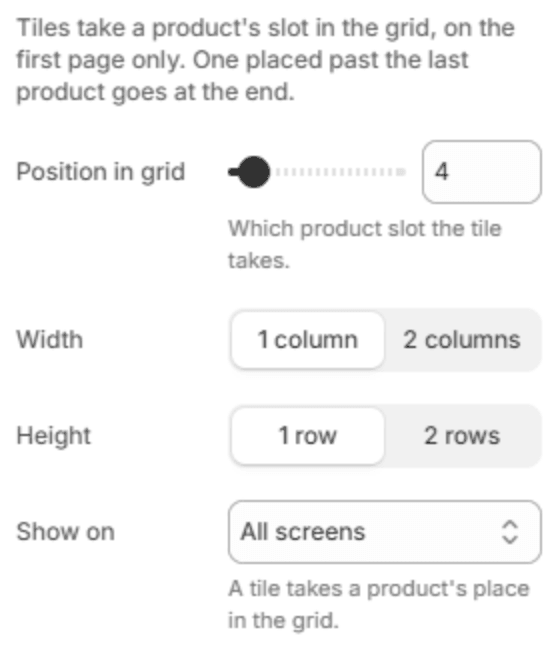
A tile in the product grid with a picture, a heading and a button, for a campaign or a related collection. Tiles show on the first page of products only. Add as many as you like.
General
| Setting | Description |
|---|---|
| Position in grid | Which product's place the tile takes (1–48). A position past the last product puts the tile at the end. |
| Width | 1 column or 2 columns wide. |
| Height | 1 row or 2 rows tall. |
| Image ratio | Square, Portrait or Landscape. Shown when the text is under the image. |
| Show on | All screens, Desktop only or Mobile only. |
Media

| Setting | Description |
|---|---|
| Image | The tile's picture. |
| Tile link | Makes the whole tile a link, button included. |
Style
| Setting | Description |
|---|---|
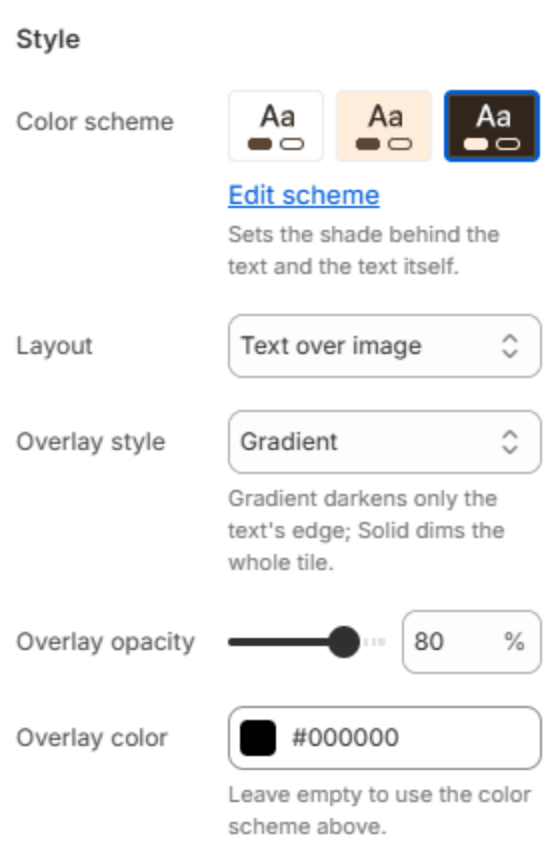
| Color scheme | The colors of the tile's text and the shade behind it. |
| Layout | Text over image or Text under image. |
| Overlay style | Gradient darkens only the edge behind the text; Solid dims the whole tile; None leaves it. Shown when the text is over the image. |
| Overlay opacity | How dark the overlay is (0–100%). |
| Overlay color | The overlay's color. Leave it empty to use the color scheme above. |
Content

| Setting | Description |
|---|---|
| Text position | Top, Middle or Bottom. |
| Text alignment | Left, Center or Right. |
| Icon | A small picture above the text (48 x 48px). |
| Subheading | A short line above the heading. |
| Heading | The tile's heading. |
| Heading size | Small, Medium or Large. Shown when the heading has text. |
| Heading font | Display uses the heading font and Body the body font. |
| Heading style | Standard, or Scrolling, which repeats the heading in a moving strip. |
| Body text | A line under the heading. |
| Button label | The button's text. Leave it empty for a tile without a button. |
| Button link | The page the button opens. Shown when there is a label and no Tile link. |
| Button style | Solid, Outlined, or Underlined text. |
| Text color | Overrides the scheme's text color. Leave it empty to use the color scheme above. |
Promotion video
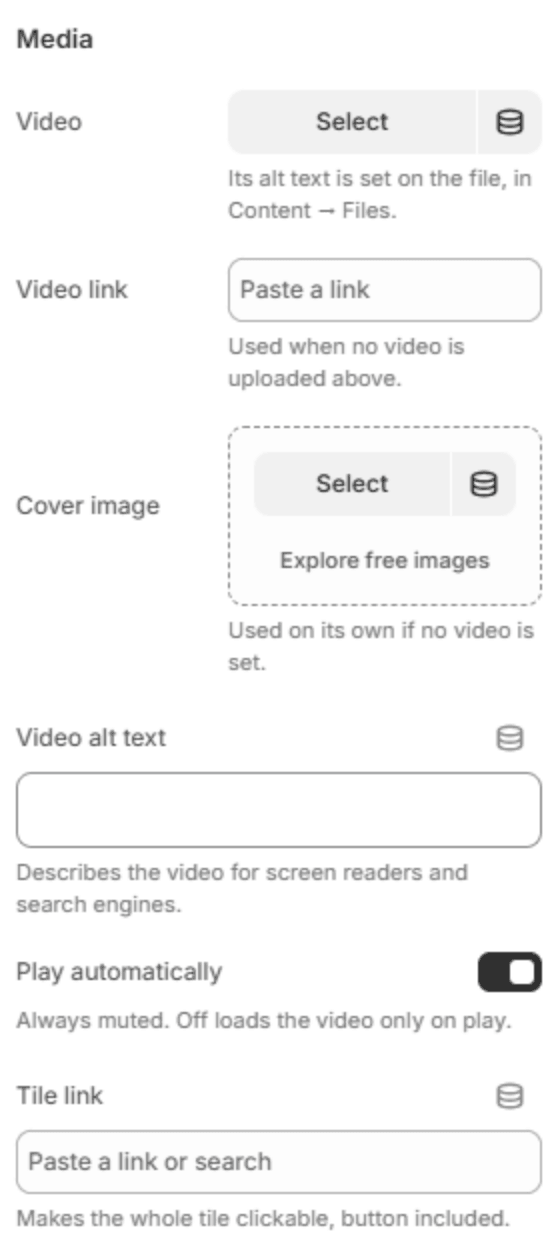
The same tile with a video in place of the picture. Its settings match Promotion image, except for its media:
| Setting | Description |
|---|---|
| Video | A video uploaded to Shopify. Its description for screen readers is set on the file, in Content → Files. |
| Video link | A YouTube or Vimeo link, used when no video is uploaded above. |
| Cover image | A picture used on its own when no video is set. |
| Video alt text | A short description of the video for screen readers and search engines. Shown for a video link. |
| Play automatically | Plays the video on its own, without sound. Off, the video loads only when the customer presses play. |
| Tile link | Makes the whole tile a link, button included. |